Friday, 25 October 2019

New Updates in Google Forms October 2019

Hi All! 

About 10 days ago, I opened a new Google Form for a registration form that I was setting up for the parents of the students I teach, and I got a nice surprise!


What was it? Google Forms with a NEW LOOK!                                 Bitmoji Image

This update is in keeping with the changes that Google has been making to the visual layout and design of all its GSuite products. 

This is a gradual roll out. So my GSuite for Education account is reflecting this change, but not in my personal account yet. But it will happen soon!


Let us take a quick look! 
                                                          Bitmoji Image

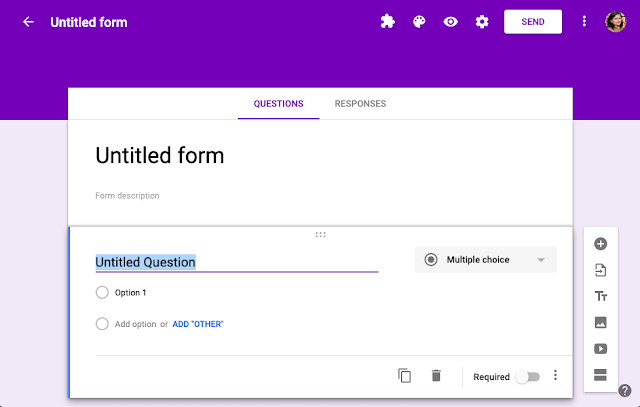
Old Forms: 

Broad Banner. Could be set to have an image preset within the application or personalised image could be uploaded. Themes could be set as well. Basic variety of fonts available.


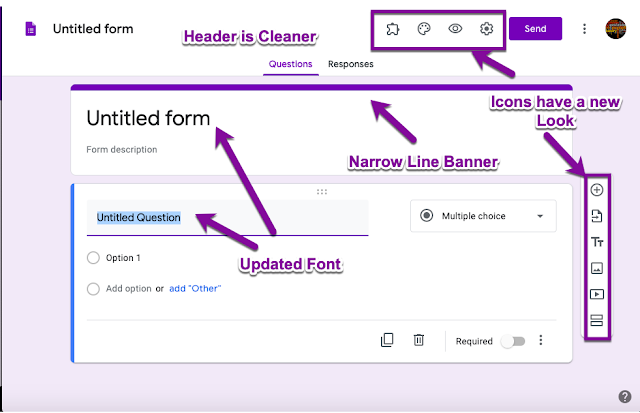
New Forms: 

Look has changes radically. Though we can still select a banner image, themes and fonts as earlier.



                                                                  memories

Old Forms: Respondent View


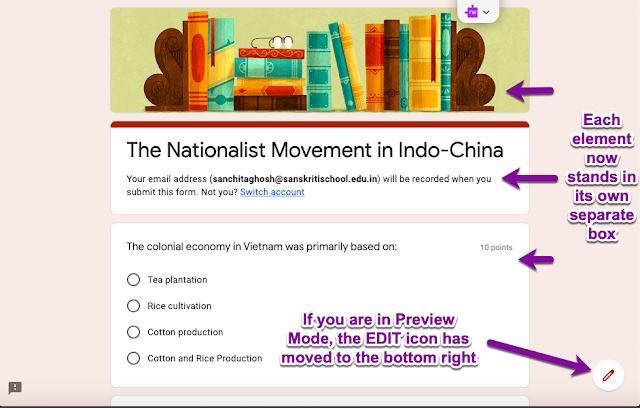
New Forms: 

Banner image is separated from the main body of the Form. Each element now, banner, title and description and each question now is housed in its own rectangle (if that makes any sense).



                                                          Bitmoji Image


Old Forms: Responses Tab


New Forms: Layout has changed!
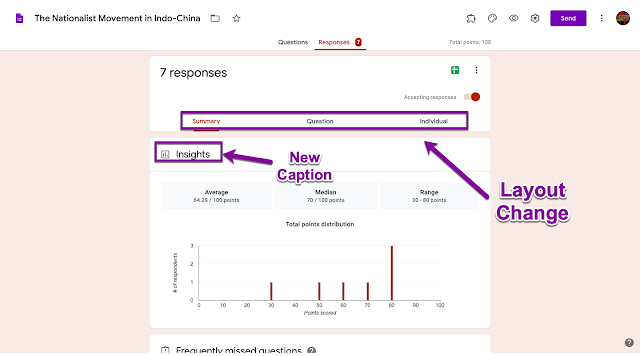


The changes as you can see are largely cosmetic. The Layout now is cleaner and in line with the changes that we have seen in most other GSuite products in recent months.

                                                  Bitmoji Image

As of now I am happy with these visual changes. But here is my wishlist from Google Forms:


Bitmoji Image

  1. There should be autosave when I am filling the form, so that if I am interrupted, I can come back to it a a later time and complete the rest of it, without having to start all over again.
  2. Get an option for assigning a time limit on each question.
  3. Have a way of setting up play-offs to make things exciting in class.
  4. Have Version History, so I can check the changes or restore an earlier version. This is especially important when you have collaborators working with you on the same Form.   


I know Quizziz and Kahoot fulfil numbers 2 and 3, but I would like to see them in Google Forms too!


Have you seen the New Look Google Forms in your GSuite account yet? What are your thoughts?

Do let me know in the comments!

Until next time.....

Teach SMART!

Bitmoji Image   
             Sanchita Ghosh
Saturday, 19 October 2019

Design a Digital Rangoli Template with Google Sheets

Hi All!

Diwali is round the corner and we all know that crackers have always been the most controversial part of the festivals, not only for the pollution it causes, but also the bad rap due to the involvement of child labour. The noise they create, causing distress to infants, senior citizens, heart patients and those with respiratory problems. They also harm birds and animals around us. 

So we talk about cleaner ways to celebrate this festival. One of the methods suggested is making rangolis. Different parts of India has a tradition of rangoli making, dry rice powder, rice powder paste, with flower petals etc. 

Image result for rangoli Image result for rangoli
Image result for alpana Image result for alpana bengali rangoliBitmoji Image


But did you know you could make digital rangolis too? Even create a template for your students to create their own digital designs. 

You can make a copy of my template by clicking HERE. 

But it is better to learn. So let's get started.

Step 1: Open a new Google Sheet
Bitmoji Image

Step 2: Add more Columns


Step 3: Resize the Columns to get Square Grids


Step 4: Make Column A Wider for the Colour Key


Step 5: Conditional Formatting
Bitmoji Image

You will need to 2 things:
a. The cell colour
b. Text colour.


Both need to do both so that when numbers are typed in the cell, it remains invisible.


Tip: Repeat till you have all your desired colours. Keep it simple, stick to single digits only.


Step 6: Set up the Colour Key


Step 7: Test it Out


Bitmoji Image


Step 8: Share with your Students
Bitmoji Image
a. You can use Google Classroom to assign it to your students, set it so that each student gets a copy. 
b. Alternately, you can force a copy (replace 'edit' with 'copy' in the url). 
c. You can even duplicate the tab so that each student has a tab to work on. 


Happy Diwali!!


Saturday, 28 September 2019

Google Forms: Import Questions Feature

Hi Everyone!

Its been rolled out a couple of months ago. Have you noticed it? I know many of you have. It is the Import Questions feature in Google Forms!


Bitmoji Image

I use Google Forms.... A LOTTT!! And I often need to use questions that I have already made in previous forms. I had to retype or copy-paste the questions and options (in MCQ or Checkbox type) every time. It was tedious and annoying.

Bitmoji Image

But now with the new IMPORT function within Google Forms, I can save a TON of time! 

The process could not be easier!

1. Select the 2nd Option from the Floating Menu on the Right side of your screen.
2. Choose Which Form

3. Checkbox the Questions
                      love emoji balloons

Review

This new update is very useful if you want to pull in a few questions from a previous form, perhaps those where the students had not fared well. Or you simply want them to revisit those questions as they advance on to new topics.

Question Bank

This is my favourite! I create Master Forms for each Unit, where I keep adding questions as they come to me. Earlier, I had to laboriously copy-paste from the Master Form to the Form I administered to my students. Now all I have to do is check all the questions I want from the Master Form in one go! Don't share the the Master Form, but make multiple Forms in different permutations and combinations for your students!
Add your colleagues as collaborators to your Master Form and expand your Question Bank!


Be a SMART Educator

Bitmoji Image

Monday, 23 September 2019

Rediscovering Flubaroo

Hey Fellow Educators!

Bitmoji Image
I had first discovered Flubaroo in 2015!! I shared what was then an amazing tool with my colleagues, but discovered soon that it was too limited for the subject that I teach, History and Social Science. I kept trying it for a while, but it didn't win me over...

But recently, I rediscovered it, and boy was I surprised. Pleasantly so, if I may add.


Find out why!


Bitmoji Image


What is Flubaroo?


Flubaroo is an Add-On for Google Sheets spreadsheets that will automatically grade student responses to formative assessment submitted through a Google Form. You can share the results with students in multiple ways. And as an educator you can view the student data in multiple ways to understand their performance in a given assessment.

What all can you do with Flubaroo?


  1. You can give Digital Badges and Stickers to your students
  2. You can send standardised or individual student feedback.
  3. Set up multiple correct answers
  4. Give partial credits
This is only the beginning!

Ready to Start? 

1. Open the spreadsheet where your Google Forms responses have been saved.
2. In the Menu Bar click on Add-Ons Menu
3. From the drop-down click on Get Add-Ons


4. Select Flubaroo from the list

                       two thumbs up
5. Install

                     Bitmoji Image
6. Give the requisite permissions

7. You are ready to start!

For more detailed tutorials click on the links below:


Be a SMART Educator!

Bitmoji Image


Sanchita Ghosh