Hi All!
Diwali is round the corner and we all know that crackers have always been the most controversial part of the festivals, not only for the pollution it causes, but also the bad rap due to the involvement of child labour. The noise they create, causing distress to infants, senior citizens, heart patients and those with respiratory problems. They also harm birds and animals around us.
So we talk about cleaner ways to celebrate this festival. One of the methods suggested is making rangolis. Different parts of India has a tradition of rangoli making, dry rice powder, rice powder paste, with flower petals etc.



But did you know you could make digital rangolis too? Even create a template for your students to create their own digital designs.
You can make a copy of my template by clicking HERE.
But it is better to learn. So let's get started.
Step 1: Open a new Google Sheet

Step 2: Add more Columns

Step 3: Resize the Columns to get Square Grids
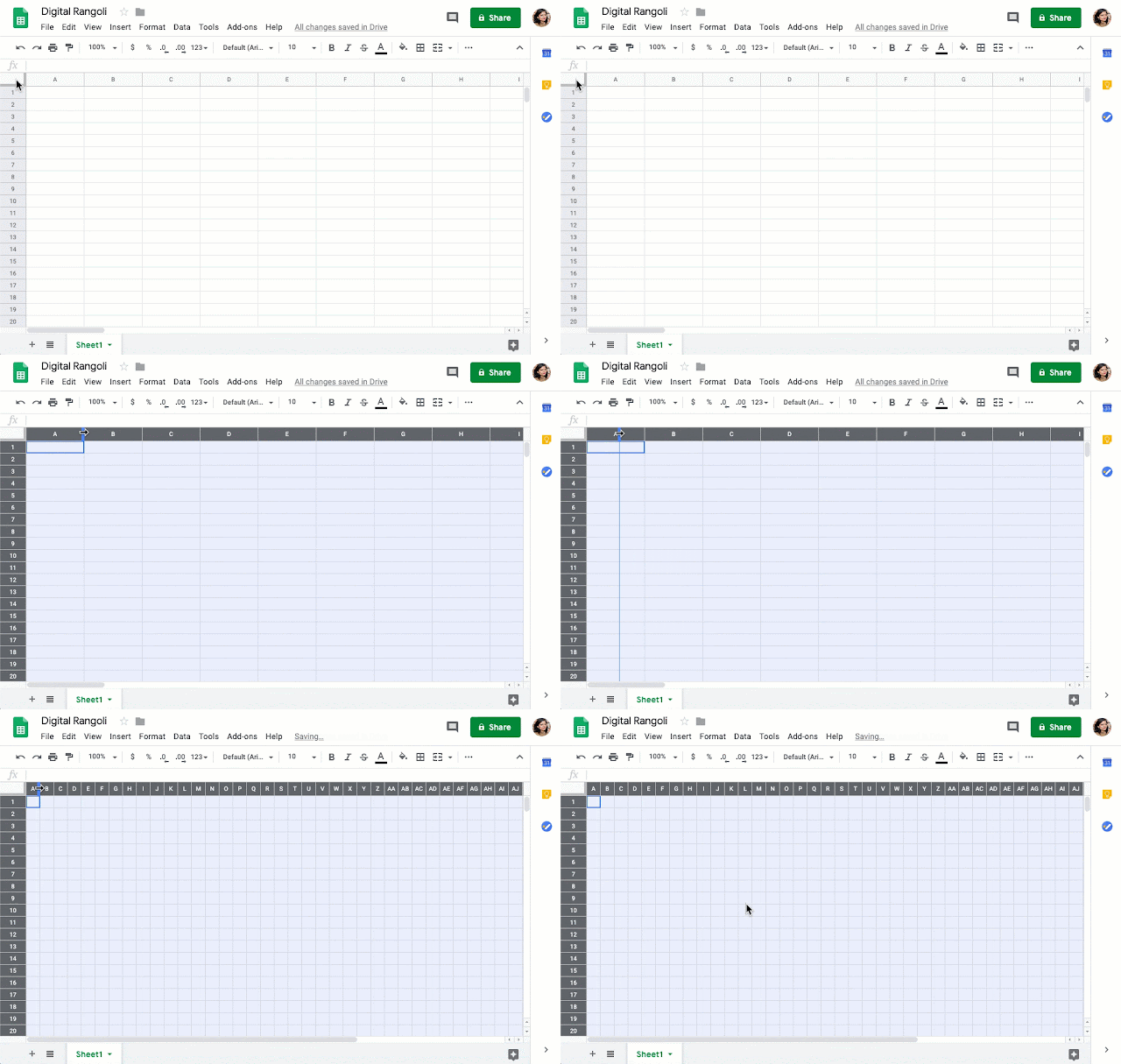
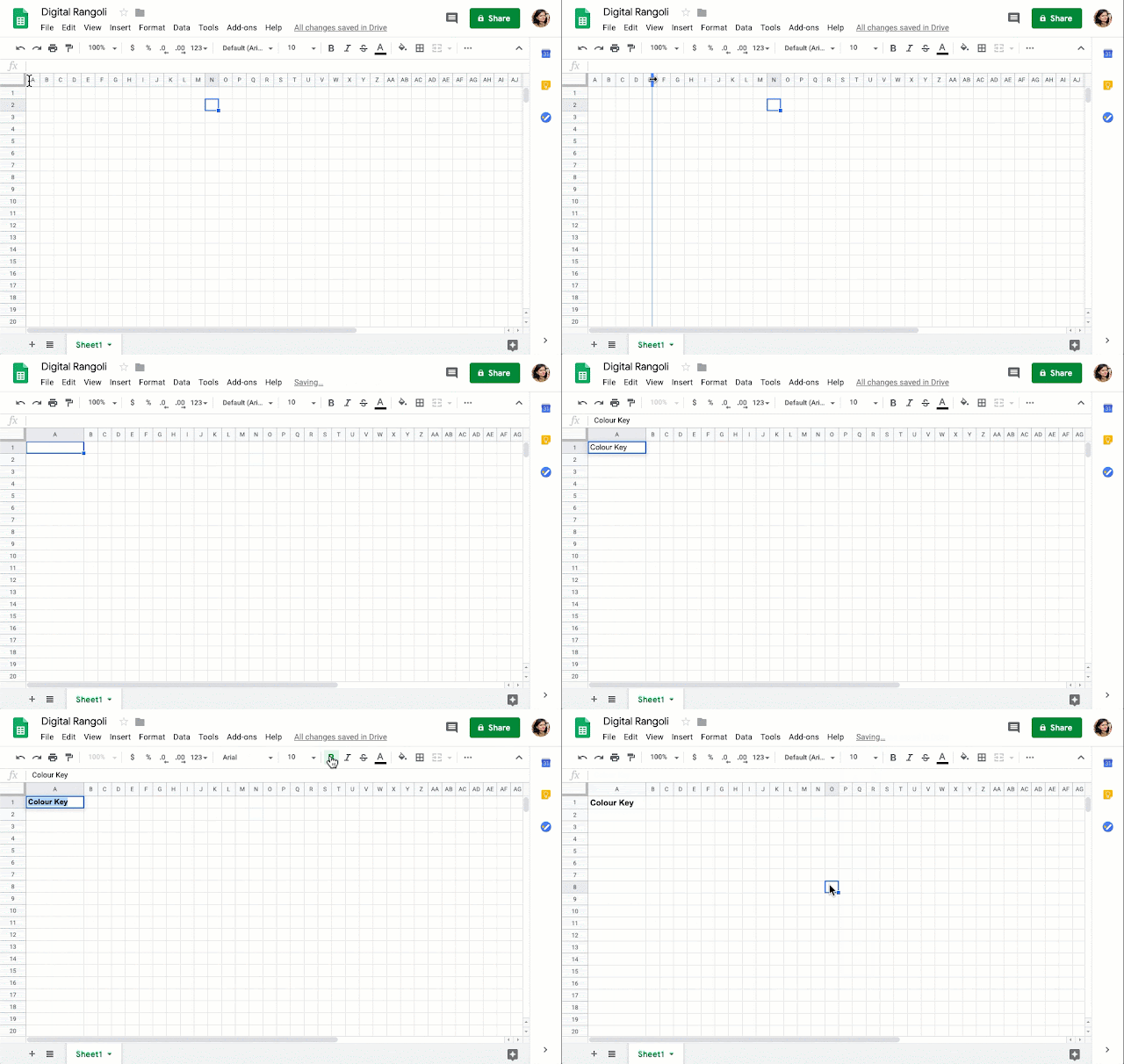
Step 4: Make Column A Wider for the Colour Key
Step 5: Conditional Formatting

You will need to 2 things:
a. The cell colour
b. Text colour.
Both need to do both so that when numbers are typed in the cell, it remains invisible.
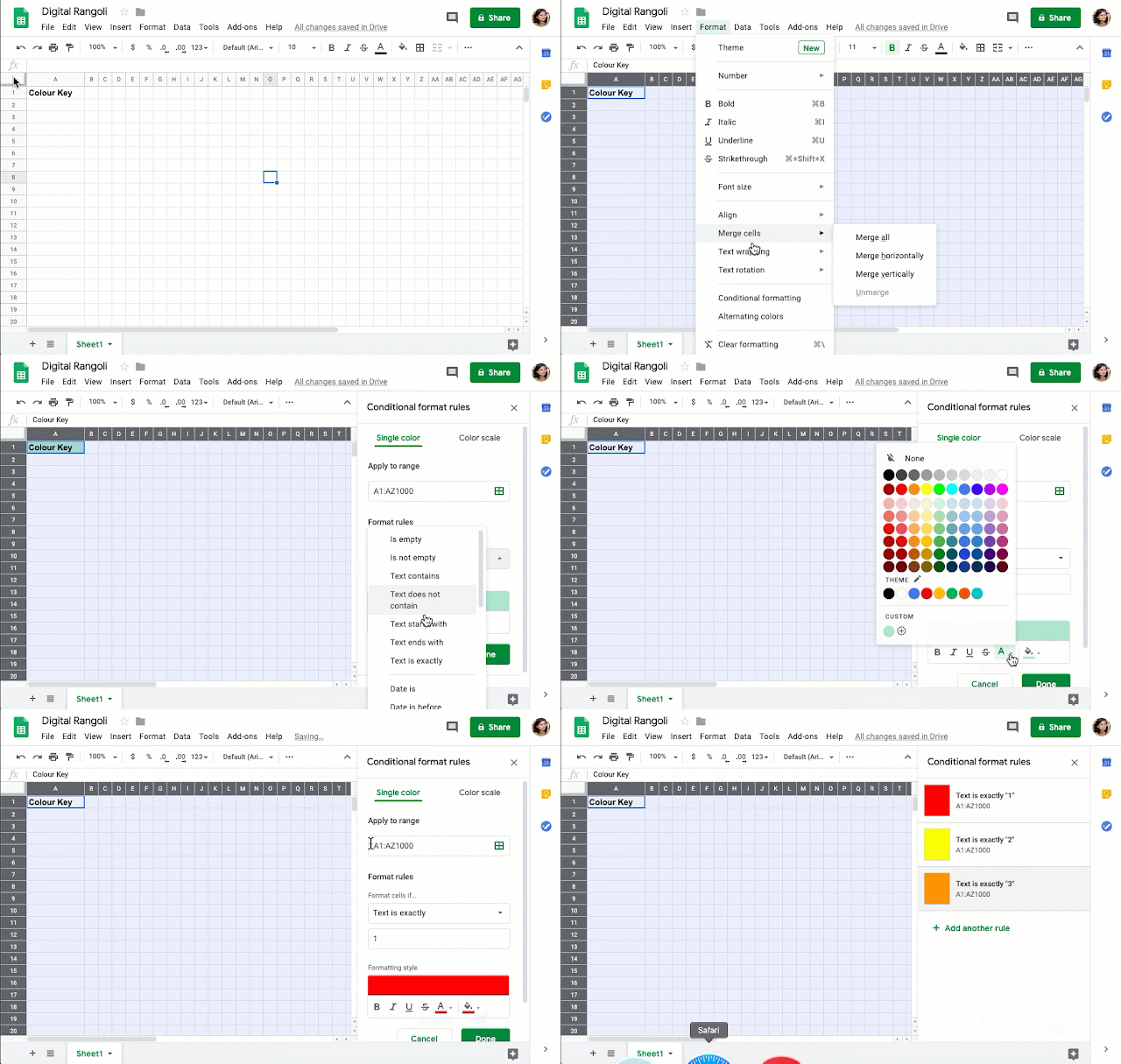
Tip: Repeat till you have all your desired colours. Keep it simple, stick to single digits only.
Step 6: Set up the Colour Key
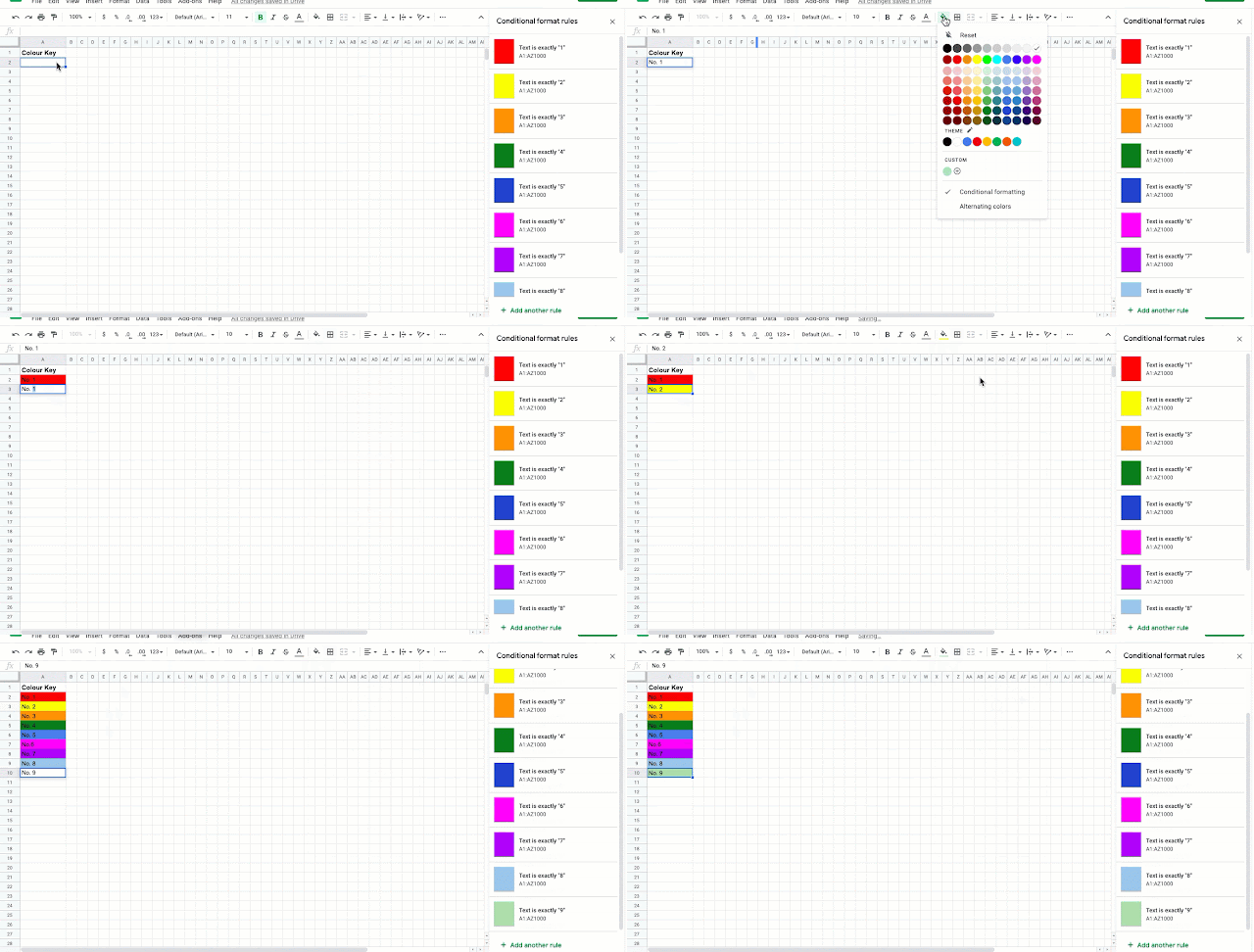
Step 7: Test it Out

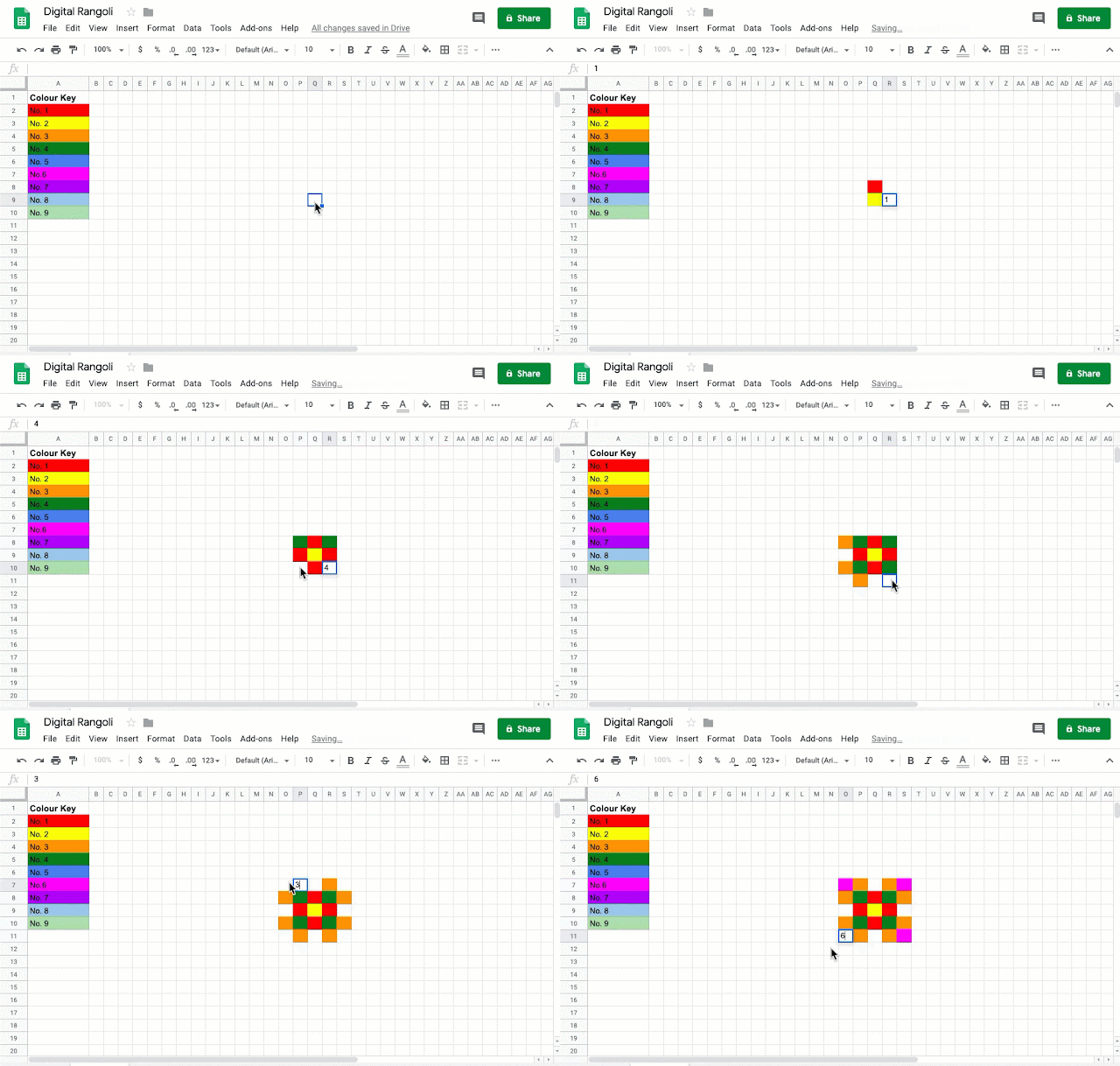
Step 8: Share with your Students
 a. You can use Google Classroom to assign it to your students, set it so that each student gets a copy.
b. Alternately, you can force a copy (replace 'edit' with 'copy' in the url).
c. You can even duplicate the tab so that each student has a tab to work on.

Diwali is round the corner and we all know that crackers have always been the most controversial part of the festivals, not only for the pollution it causes, but also the bad rap due to the involvement of child labour. The noise they create, causing distress to infants, senior citizens, heart patients and those with respiratory problems. They also harm birds and animals around us.
So we talk about cleaner ways to celebrate this festival. One of the methods suggested is making rangolis. Different parts of India has a tradition of rangoli making, dry rice powder, rice powder paste, with flower petals etc.

But did you know you could make digital rangolis too? Even create a template for your students to create their own digital designs.
You can make a copy of my template by clicking HERE.
But it is better to learn. So let's get started.
Step 1: Open a new Google Sheet

Step 2: Add more Columns

Step 3: Resize the Columns to get Square Grids

Step 4: Make Column A Wider for the Colour Key

Step 5: Conditional Formatting
You will need to 2 things:
a. The cell colour
b. Text colour.
Both need to do both so that when numbers are typed in the cell, it remains invisible.

Tip: Repeat till you have all your desired colours. Keep it simple, stick to single digits only.
Step 6: Set up the Colour Key

Step 7: Test it Out


b. Alternately, you can force a copy (replace 'edit' with 'copy' in the url).
c. You can even duplicate the tab so that each student has a tab to work on.
Happy Diwali!!


